Table of Contents
The Foundation (Setup)
Website Design -Before you touch a single pixel, you need a home for your site.
- Domain & Hosting: Choose a brandable .com domain. For hosting in 2026, look for “Managed WordPress Hosting” (like Kinsta or WP Engine) or eco-friendly options like GreenGeeks, which use renewable energy.
- SSL Certificate: This is no longer optional. Ensure your host provides a free SSL to keep that “Secure” padlock in the browser.
- The “Clean Slate” Rule: Once WordPress is installed, delete the “Hello World” post and sample pages. Set your Permalinks to “Post Name” under Settings for better SEO.
Architecting the User Experience (UX)
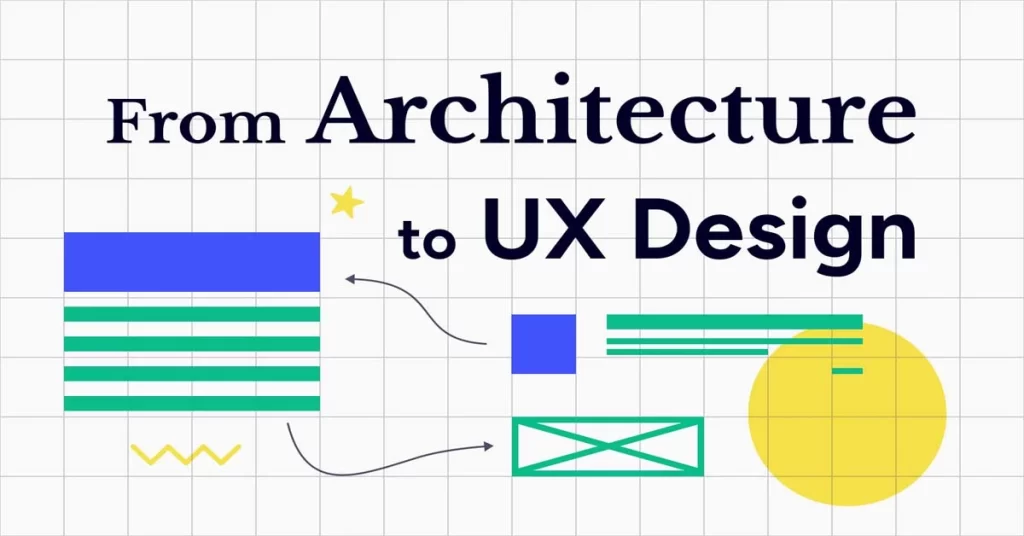
Design is how it works, not just how it looks.
- Define Your Goal: Is it lead generation, sales, or information? Your layout should lead to one primary Call to Action (CTA).
- Create a Sitemap: Map out your essential pages: Home, About, Services/Products, Blog, and Contact.
- Mobile-First Design: Over 60% of traffic is mobile. Use the “Inspect” tool in your browser to check how your site looks on various screen sizes throughout the process.
Visual Design & 2026 Trends

This is where the magic happens. In 2026, the trend is shifting from “perfectly polished” to “tactile and expressive.”
- Choose a Lightweight Theme: Use a fast-loading base like Astra or GeneratePress. Avoid “bloated” themes that come with 50 unnecessary plugins.
- Embrace the “Bento Grid”: Organize your content in modular, asymmetric blocks (like a Japanese lunch box) to keep things organized but visually exciting.
- Typography over Images: Use bold, expressive typography as a primary design element. This improves load speeds while giving your brand a unique voice.
- AI-Assisted Creation: Use tools like Elementor AI or Divi AI to generate custom CSS snippets or refine your copy directly within the editor.
The Power-Up (Essential Plugins)
Keep your plugin count low (ideally under 15) to maintain speed. | | Performance | WP Rocket or NitroPack | Caching and speed optimization. | | Security | Wordfence | Firewall and malware scanning. | | Forms | WPForms | Simple drag-and-drop contact forms.
The Pre-Launch Checklist
Don’t hit “Publish” until you’ve checked these boxes:
- Speed Test: Run your URL through Google PageSpeed Insights. Aim for a score above 90.
- Alt Text: Ensure every image has descriptive “alt text” for accessibility and SEO.
- Broken Links: Click every button and link to ensure they go where they should.
- Legal Pages: Ensure your Privacy Policy and Terms of Service are live.
FAQs
What are the basic requirements to start building a WordPress website?
To get off the ground, you really only need three things:
- A Domain Name: Your digital address (e.g., yourbrand.com).
- Web Hosting: The “house” where your website files live.
- A Content Management System (CMS): Specifically, the free software from org.
How do I choose and register a domain name for my WordPress site?
Your domain is your first impression. Aim for something short, memorable, and easy to spell.
- Research: Use tools like Namecheap or Google Domains to see what’s available.
- Extension: Stick with .com if possible; it’s still the gold standard for trust.
- Registration: You can buy it separately, but many hosting providers give you a free domain for the first year when you sign up for a hosting plan.
What are the steps to install WordPress on my hosting provider?
Most modern hosts (like Bluehost, SiteGround, or HostGator) offer a “One-Click Install.”
- Log into your hosting cPanel or dashboard.
- Look for the WordPress icon or “Auto-installer” section.
- Enter your site name, admin username, and a strong password.
- Click Install, and you’re ready to log in at com/wp-admin.
How can I select and install the best theme for my website design?
Think of a theme as your site’s “outfit.”
- Selection: Go to Appearance > Themes > Add New. Look for themes that are “Mobile Responsive” and have high ratings.
- Recommendation: For beginners, Astra, GeneratePress, or OceanWP are excellent because they are lightweight and fast.
- Installation: Click Install and then Activate.
What essential plugins should I install to enhance my WordPress site functionality?
Plugins are like apps for your website. Don’t overdo it (too many can slow you down), but start with these:
- Security: Wordfence or Sucuri.
- SEO: Yoast SEO or Rank Math.
- Backup: UpdraftPlus (crucial for when things go wrong!).
- Caching: WP Rocket or LiteSpeed Cache for speed.
- Spam Protection: Akismet (usually pre-installed).